Ace map · guide · 2026-10-22

Demo guide

For recording Ace demos on stable Ace (0.0.54 or newer) with the GitHub Next team: what works and where to find it, what to rehearse once before you record, and what to stay away from. Each ^N links to that step on the map, with a screenshot and its status.

Before you start

A Mac with Apple silicon
TailscaleSigned in to the _github_next tailnet before you open Ace. Channels belong to the tailnet their host was on.
The GitHub CLISigned in with gh auth login. Ace uses its sign-in for pull requests, issues and the PR actions (^741).
An Anthropic API key and the team secretThe secret is in 1Password, linked in the dogfooding guide.
Once per Mac

Set up

  1. Install stable Ace

    github.com/githubnext/ace → releases/latest

    Install it from releases/latest, which is 0.0.54 or newer, not Ace Canary. If you already have Ace, open Settings → Updates → Install and Restart.
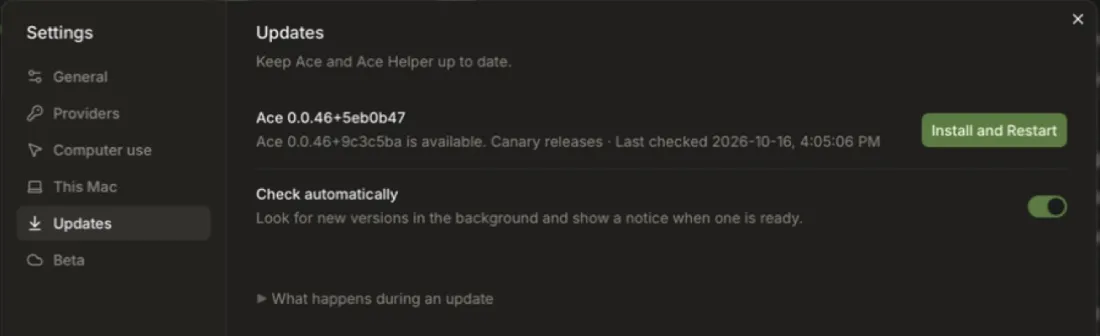
    Settings, Updates: the installed version, an available update and Install and Restart
    Settings → Updates in the desktop app (shown on an earlier canary).
  2. Add your model key ^48

    Settings (⌘,) → Providers → Anthropic → Add key

    Paste your Anthropic key, then Check and save.
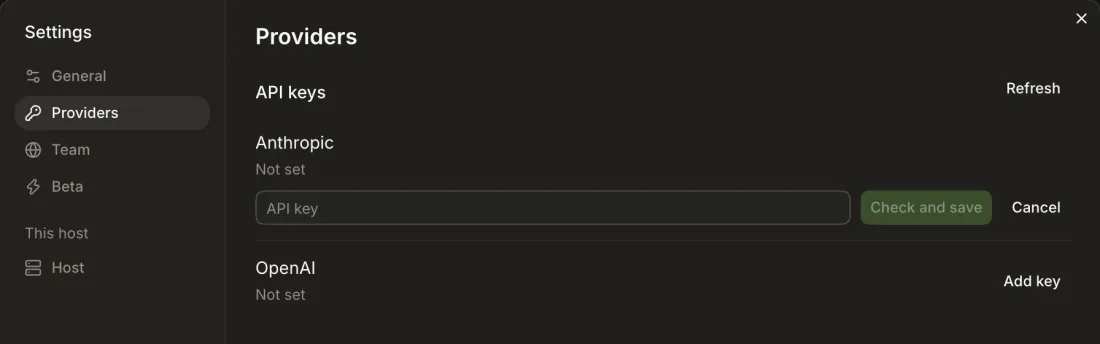
    Settings, Providers: the Anthropic API key field with Check and save
  3. Join the team directory ^118

    Settings → Team → Join…

    Enter the URL https://ace-github-next-directory.iamnbutler.workers.dev and the team secret, then Check and join.
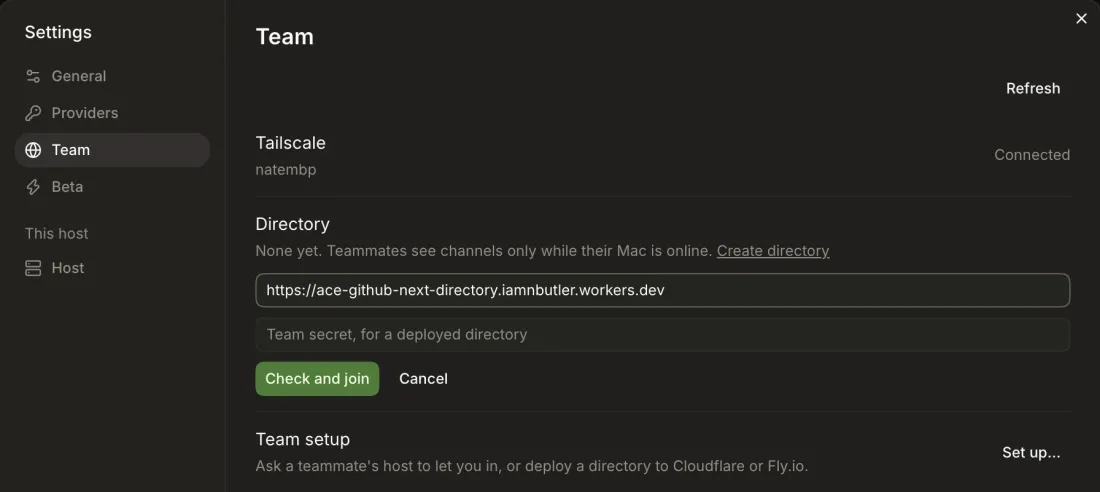
    Settings, Team: the directory URL filled in, the team secret field and Check and join
  4. You're in

    The Directory row shows its URL, when it last synced, and "Directory checked and joined." People lists everyone on the team. Teammates appear here once their Ace is running on the tailnet.

    Don't run a dev build at the same time as the app.
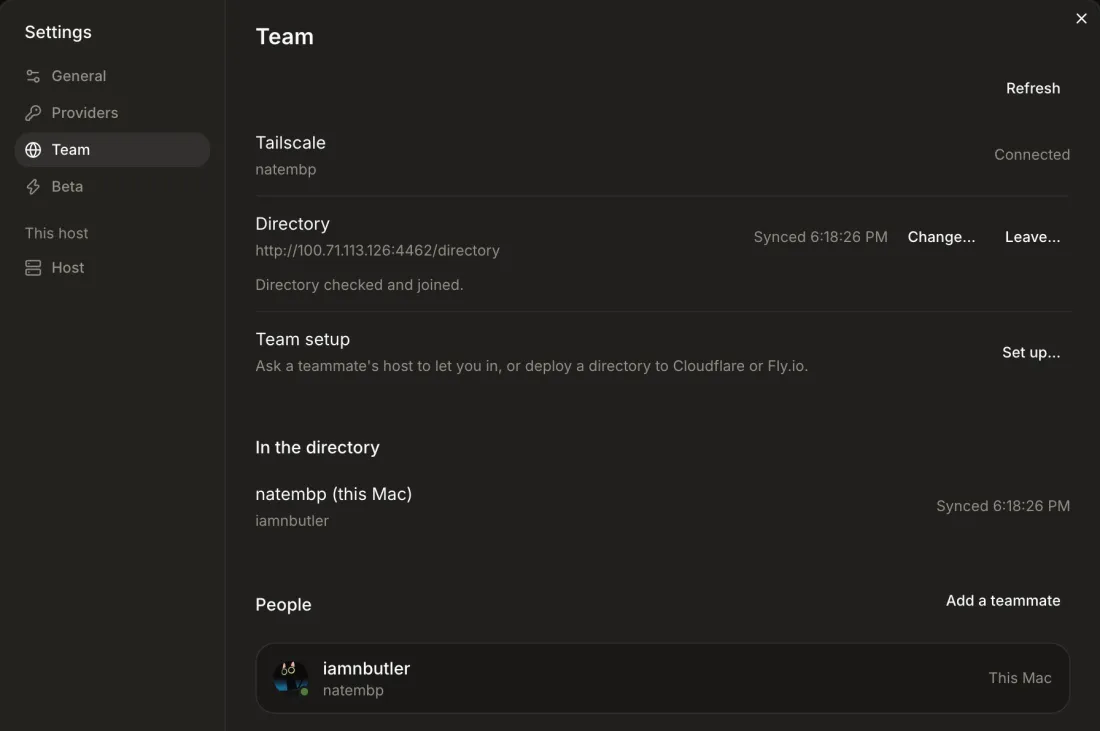
    Settings, Team after joining: directory synced, In the directory, People
    From a test host; yours shows the workers.dev URL.
Works today

Solo loop

An agent has seen each of these work on a real host. Record them in this order.
1Starta project and a channel
  1. 1.1

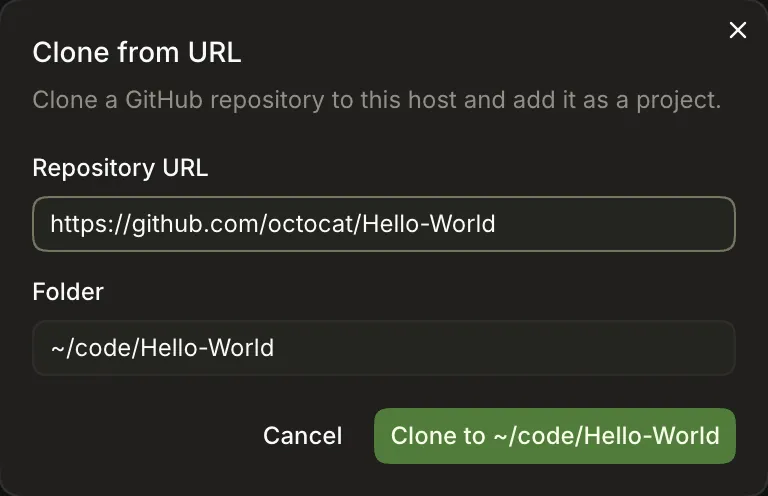
    Add a project

    ⌘O, or project picker → Open folder… / Clone from URL…

    A folder with no commits offers Initialize Git.
  2. 1.2

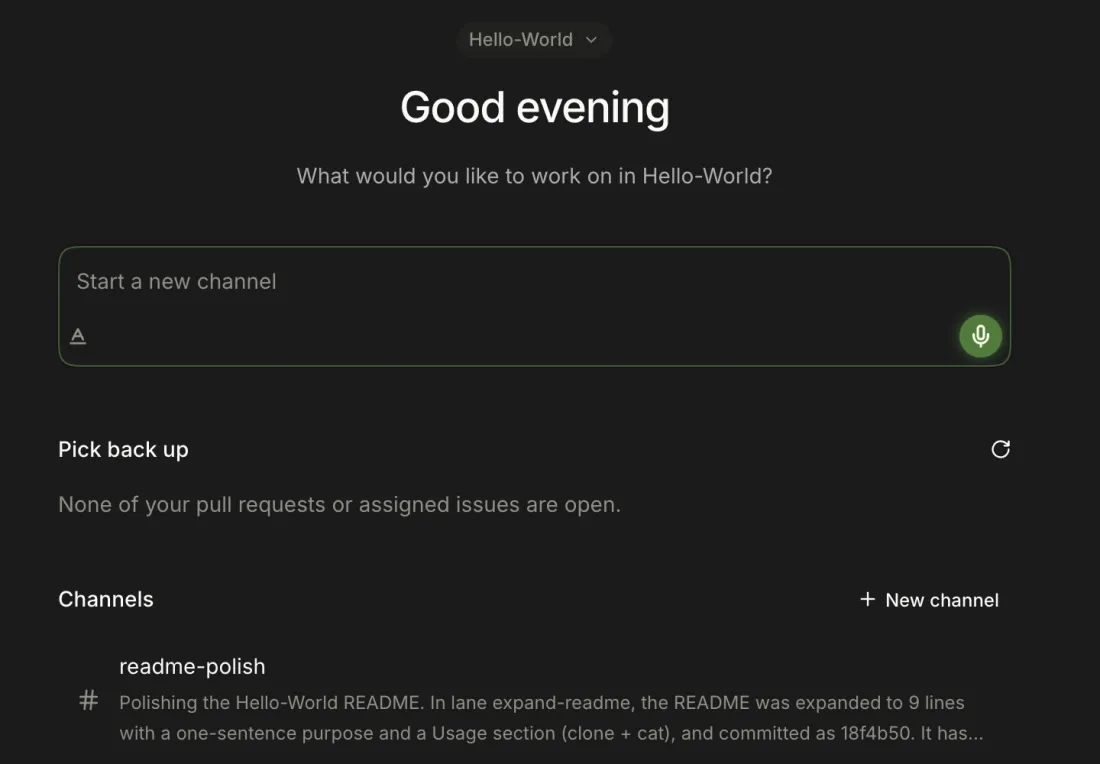
    Start a channel

    Dashboard composer ("Start a new channel") → Enter

    Or the Channels header +, or ⌘K → New Channel.
    ^373^371tested
2Askthe agent, and watch it work
  1. 2.1

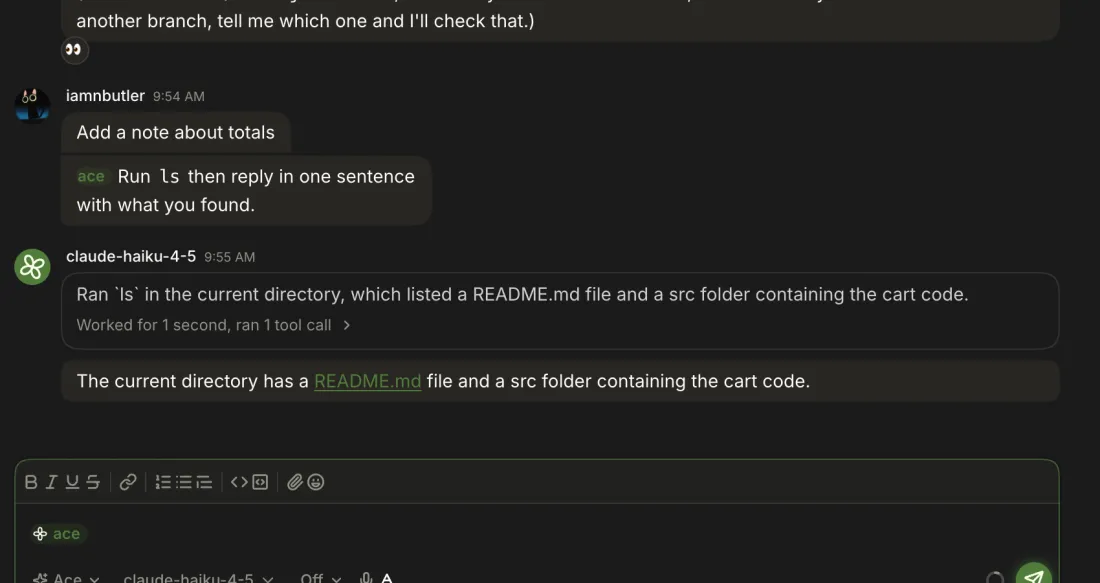
    Talk to the agent

    Composer in Ace mode, or type @ace

    Chat mode talks to people only. Attach or paste images and files.
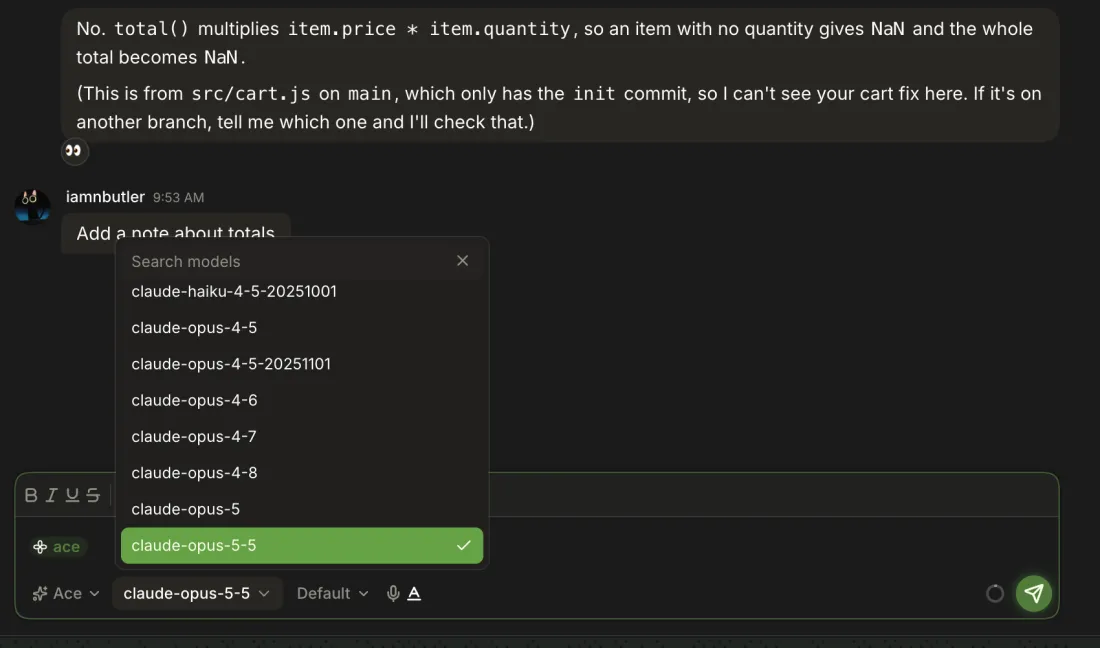
    ^471^501tested
  2. 2.2

    Pick a model and effort

    Composer → model button / effort button
    ^516^518tested
  3. 2.3

    Watch it work

    "Worked for N seconds" → each tool's output

    Edited-file cards open the Diff.

    ^522^524tested
  4. 2.4

    Steer or stop

    Send while it runs · hover Send → Stop

    Queued messages steer the run. Stop slides out from behind Send on hover.
    ^531^533tested
  5. 2.5

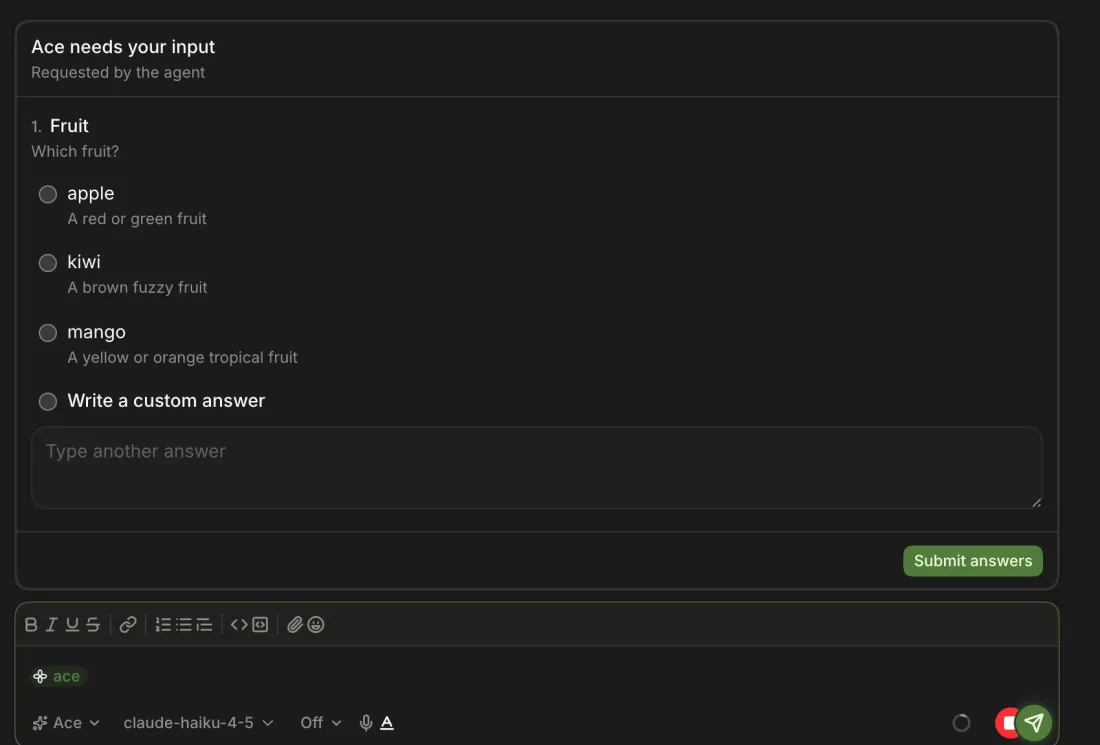
    Answer its questions

    Question card → pick an option, or Skip
    ^547^549tested
  6. 2.6

    Retry a failed run

    Retry notice under the composer
    ^526visual
3Reviewthe changes
  1. 3.1

    See the changes

    Diff tab

    It opens itself on the first change, with split/unified view and a file tree.
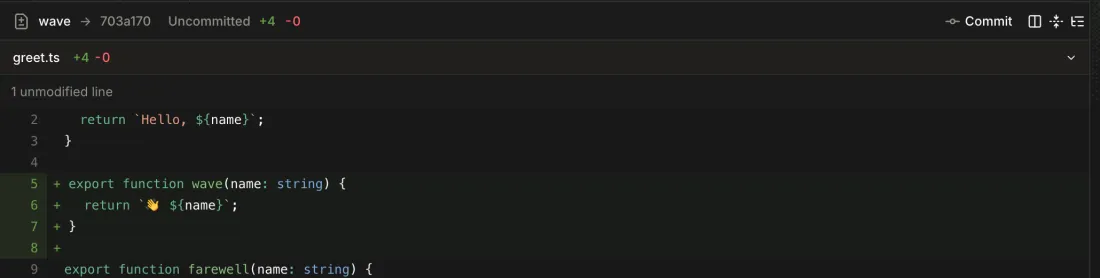
    ^681^686tested
  2. 3.2

    Lanes

    Ask the agent to start, switch or list lanes
    ^696tested
  3. 3.3

    Commit, rebase

    Diff toolbar or details sidebar → Commit / Rebase
    ^701^707tested
4Shipa pull request
  1. 4.1

    Open and follow a PR

    Create PR (or a draft) → details sidebar

    The sidebar shows the PR and checks, then Update PR, Ready for review, Merge PR.

  2. 4.2

    Fix failed checks

    Failed-checks notice above the composer → Fix
    ^724tested
  3. 4.3

    Issues and PRs

    Rail → Issues / PRs (⌘3, ⌘4) → hover a row → Open in a channel

    Hidden for projects without a GitHub repo.

    ^734^738tested
+Anytimelayout and channels
  1. Layout

    Tabs · split right or down · ⌘K · ⌘B / ⌘⇧B

    Tabs are Chat, Diff and Terminal. Drag tabs between panes. ⌘B and ⌘⇧B toggle the sidebars.

    ^637^646tested
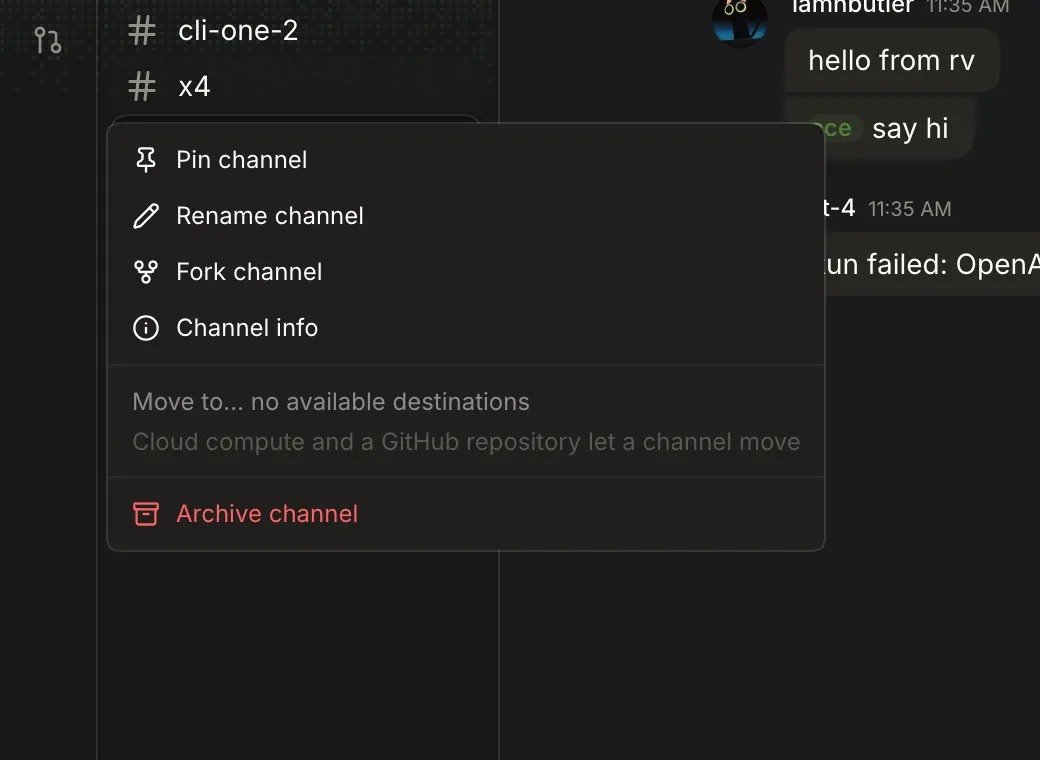
  2. Organize channels

    Right-click a channel → Pin, Rename, Fork, Archive, Channel info
    ^394^405tested
Rehearse once before recording

Team

The single-host versions of these work. What hasn't been seen yet is two real people on two Macs, and that's what a team demo shows. Do a dry run with a teammate first.
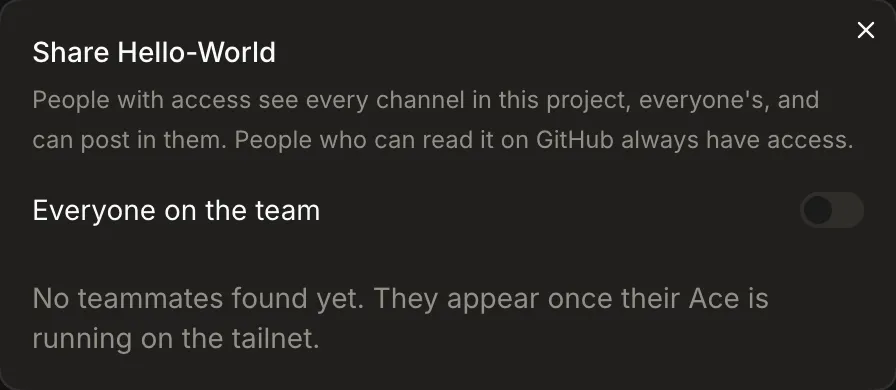
Two Macs on the _github_next tailnet: Mac A owns the project and its channels and lists them in the team directory; Mac B finds them there and opens them over the tailnet. _github_next tailnet Team directory ace-github-next-directory…workers.dev Mac A · you, the owner Ace + your model key project: Hello-World (shared) # channels, lanes, diffs agent runs here Mac B · teammate Ace, joined to the same directory sees your channels in the sidebar types, @mentions, sends @ace lists its channels finds them opens a channel, chats @ace runs on Mac A only with agent access on
Channels live on the Mac that made them. The directory only lists them; a teammate opens yours over the tailnet while your Mac is online.
  1. 1

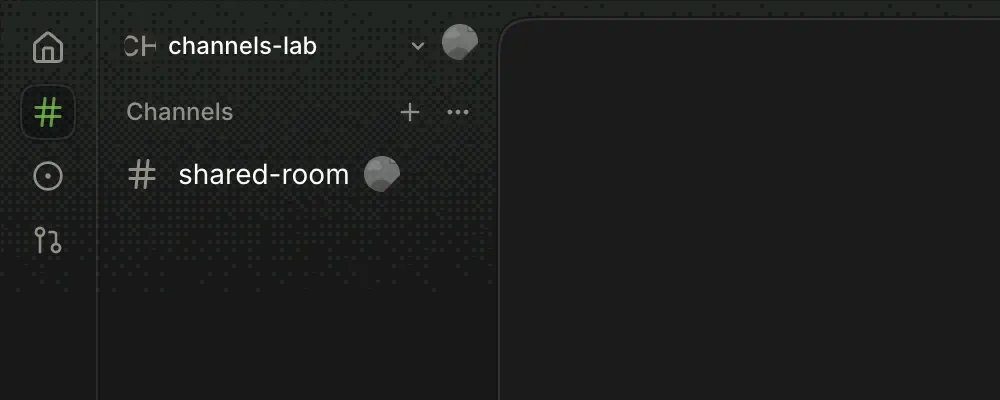
    Share a project

    Channels page → Channels header ⋯ → Share project… → Everyone on the team, or one person

    Only shows once you've joined the directory.
    rehearse^352^353
  2. 2

    See teammates and their channels

    Settings → Team → People · teammates' sections in the sidebar
    seenpeople^101
    rehearsechannels across Macs^103
  3. 3

    Presence

    Avatars on channel rows and the project header
    seen^388
  4. 4

    Who's typing

    Under the composer
    rehearseacross Macs^900
  5. 5

    @mention a person

    Composer → @ suggests members

    Mentions count on the channel row and notify in the desktop app.
    seen^485
  6. 6

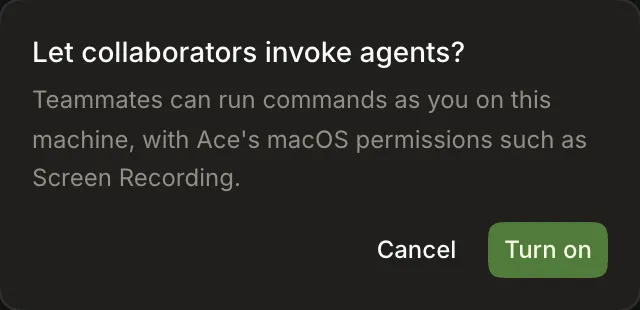
    Let teammates invoke the agent

    Channel header → bot icon → Turn on

    A teammate then sends @ace in your channel.
Available to try

Move a channel to a cloud workspace

Right-click a channel → Move to ^425

It passed a move study on 2026-10-19, but moving back hasn't been tried. Pushes from a cloud workspace use a stopgap GitHub token that isn't yours, so don't open PRs from one on camera.

The CLI

ace ls --team · ace ask · ace watch · ace answer

Install it from Settings → Ace Helper → Command line tool. See CLI.
Phone over the tailnet

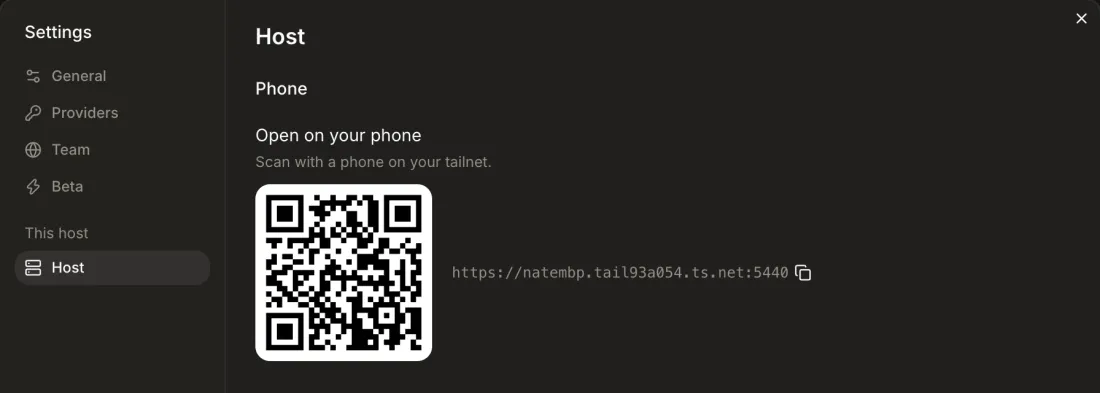
Settings → Ace Helper → Open on your phone

Settings shows a QR code for this Mac. Most of the phone layout works (Devices).

Avoid

These don't exist, are known to be broken, or behave oddly on camera.

Don't ask the agent to push a lane with uncommitted or untracked files

Since 0.0.53 the agent should ask before staging files that aren't part of the work, but that's an instruction it follows, not a hard stop (^708). Commit first with the Commit button.

Doesn't exist yet

  • Renaming or reordering projects^339
  • Renaming a channel from its header (right-click it in the sidebar instead)^401
  • Choosing files or hunks to commit, or discarding changes^703 ^704
  • Pushing without a PR^709
  • Tab shortcuts^635
  • A Window menu^653
  • "Jump to latest" in the timeline^585
  • More than one chat per channel in the sidebar^582
  • Copying a link to a message^567
  • Tool approvals

Odd on camera

  • ⌘K inside the composer adds a linkIt doesn't open the palette, so click outside the composer first (^646).
  • The model can only be picked after a channel is created^378
  • Pins are per browser or app^395
  • "Open in a channel" starts a run straight awayOn Issues, PRs or the Dashboard there's no chance to edit the prompt, and clicking twice makes two channels. Click it once, on purpose (#28).
  • Sidebar actions post as you and take about a minuteCommit, Create PR, Merge and Close in the details sidebar each post an @ace message in your name. The sidebar starts closed, so open it before you record (#20).
  • Open folder… opens the nearest enclosing repositoryIt doesn't say so, and a second copy of a project already open does nothing. Open a repository's root folder (#615).
  • The first second after a reload flickersYour own project can show as another host's, and Issues and PRs flash in the rail. Start recording once the page settles (#617).
  • Different places can name different modelsThe composer, the details sidebar and ace ls can disagree. Pick the model and send once before recording (#618).
  • Desktop notifications ask firstThe first one asks for macOS permission, so allow it before recording.

When something breaks

Note the ^N from this map and what you saw, and file it in githubnext/ace or tell Nate. Ace's helper log is in the Ace menu → Show Ace Helper Log.